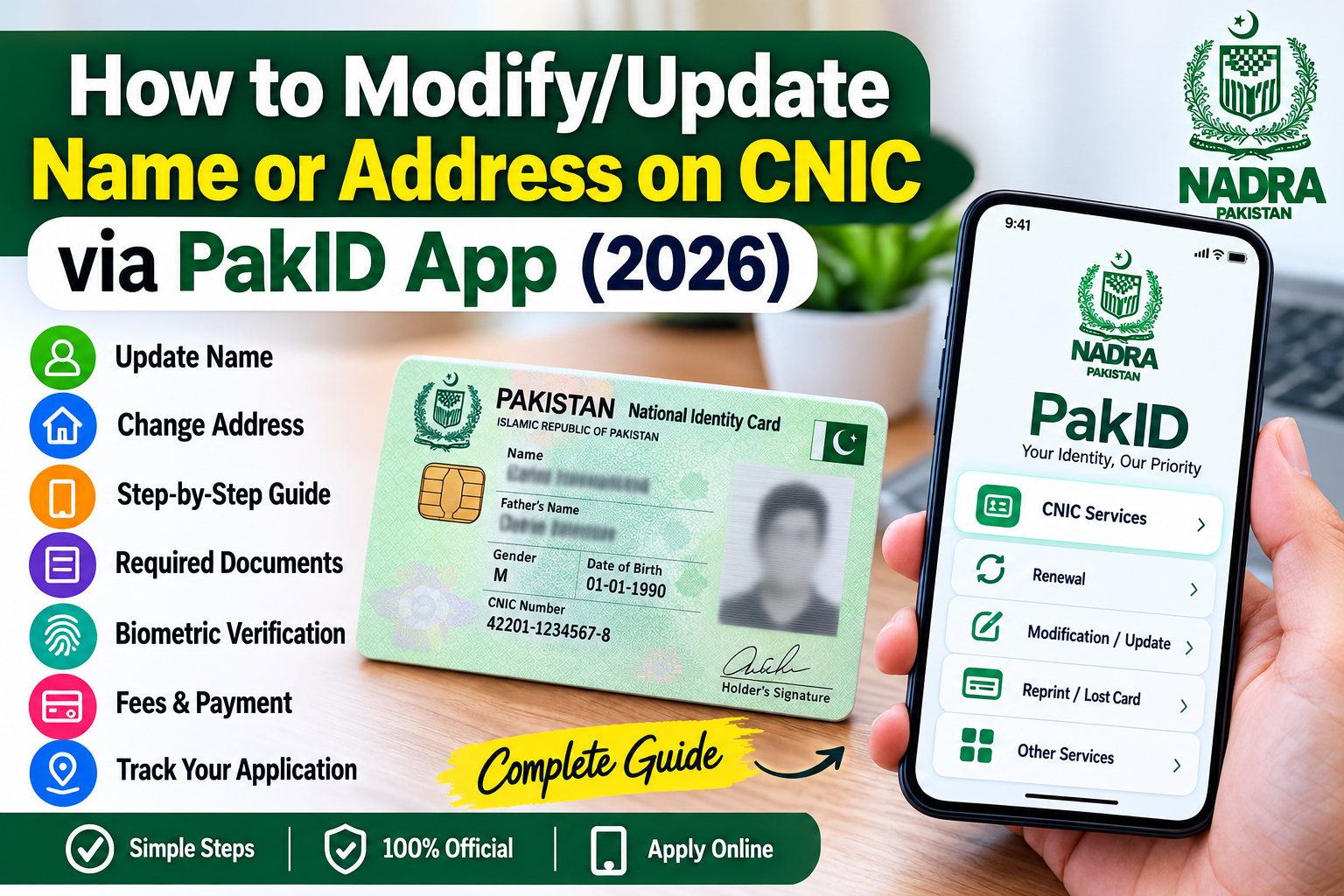
If your name or address has changed and you want to update your CNIC records, you may not always need to visit a NADRA office. NADRA’s official PakID mobile application allows eligible Pakistani citizens to apply for CNIC modification services online.
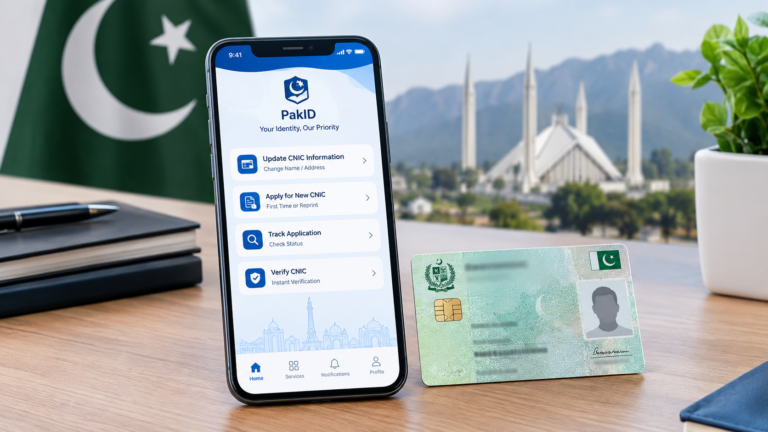
The PakID app supports several CNIC services, including CNIC modification, renewal, reprint/lost card services and other identity-related services.
In this guide, we explain how to modify or update your name or address on CNIC through the PakID app, what documents may be required, how biometric verification works, how to pay the applicable fee and how to track your application.
What Is the PakID App?
PakID is NADRA’s official mobile application for identity-related services. Through the app, citizens can apply for services such as CNIC renewal, modification and reprint/lost card services.
NADRA also provides online application tracking and document-upload facilities through PakID.
The official NADRA website identifies PakID as its official mobile application for identity registration, updates and service tracking.
Can You Change Your Name or Address on CNIC Online?
Yes. CNIC modification is available through PakID, subject to NADRA’s requirements and verification process.
A modification application may be used when you need to update eligible information in your NADRA record, such as a name or address. The exact supporting documents depend on the type of modification being requested.
NADRA may require additional verification or a visit to a registration centre for certain applications.
How to Modify Your Name or Address on CNIC Through PakID
Follow these general steps:
Step 1: Download the Official PakID App
Install the official PakID mobile application on your smartphone.
Always use the official NADRA application rather than an unofficial app or website.
NADRA currently provides PakID as its official mobile application for identity services.
Step 2: Create an Account or Sign In
Open the PakID app and:
- Create your PakID account if you are a new user.
- Enter the required information.
- Verify your account.
- Sign in to your PakID account.
NADRA’s current digital identity information says users can register on the PakID platform using their CNIC details, valid email address and mobile number.
Step 3: Select CNIC Modification
After logging in, look for the CNIC services section.
Select:
CNIC → Modification / Update
The exact wording or layout of the app can change as NADRA updates the application.
NADRA officially lists CNIC Modification among the services available through PakID.
Step 4: Enter Your Existing CNIC Information
Enter or confirm your existing CNIC details as requested by the application.
Make sure the information you enter matches your NADRA record.
Carefully check your:
- CNIC number
- Name
- Father’s/Husband’s name, where applicable
- Date of birth
- Address
- Contact information
- Other requested details
Step 5: Select the Information You Want to Modify
Choose the relevant modification according to the purpose of your application.
For example, you may need to update:
Name:
If your legally supported name information needs to be changed.
Address:
If you have moved to a new residential or permanent address and need your NADRA record updated.
The documents required can vary according to the requested modification.
Step 6: Upload Supporting Documents
PakID allows applicants to upload required documents using their mobile device. NADRA states that its mobile application supports document uploads by capturing documents with the phone camera or selecting files from the device.
Before uploading:
- Make sure documents are clear.
- Avoid blurry photographs.
- Make sure all important text is visible.
- Upload the correct document.
- Do not crop out important information.
- Follow the document requirements shown inside the application.
For a name modification, NADRA may require documentary evidence supporting the requested change.
For an address modification, the app may request documents supporting the new address, depending on the application and NADRA’s requirements.
Because requirements can differ by case, applicants should follow the documents specifically requested by PakID.
Step 7: Complete Biometric Verification
PakID supports biometric verification using a smartphone camera where applicable.
NADRA says the current PakID platform supports fingerprint-based biometric verification and live photo capture.
Follow the instructions displayed in the application carefully.
You may also be required to visit a NADRA Registration Centre if the application requires additional verification.
Step 8: Capture Your Photograph and Signature
Depending on the application, PakID may ask you to provide:
- Live photograph
- Signature
- Fingerprints/biometric verification
- Supporting documents
Make sure you are in a well-lit area and follow the on-screen instructions.
NADRA says PakID supports live photo capture and electronic signature capture.
Step 9: Review Your Application
Before submitting the application, carefully review every detail.
Pay particular attention to:
- Spelling of your name
- English and Urdu information
- New address
- Date of birth
- CNIC number
- Uploaded documents
- Photograph
- Signature
- Contact information
A small spelling mistake can cause problems later, so review the application before final submission.
Step 10: Pay the CNIC Modification Fee
After completing the application, the applicable NADRA fee will be displayed according to the service and processing option available to you.
NADRA currently supports payment methods including credit card, debit card and Raast, while some additional payment options are available for specific services.
For Raast payments, NADRA’s current procedure allows the applicant to generate a QR code from the PakID application and complete payment through a banking app.
Important
CNIC fees and processing options can change. Therefore, check the fee displayed in the official PakID app or NADRA’s official fee information before making payment.
Step 11: Submit the Application
After completing the required information, documents, biometric verification and payment, submit your application.
You should receive an application or Tracking ID.
Keep this Tracking ID safe because it can be used to monitor your application.
How to Track Your CNIC Modification Application
You can track your application through the PakID app.
The application dashboard can be used to monitor the progress of your application. NADRA lists application tracking as one of the core features of PakID.
If NADRA requests additional information or verification, follow the instructions shown in your application.
Do You Need to Visit a NADRA Office?
Not necessarily.
PakID is designed to allow citizens to apply for eligible identity services remotely. However, some applications may require additional verification or a visit to a NADRA Registration Centre.
NADRA’s CNIC information specifically notes that biometric verification and photographs may require a visit to a registration centre in cases where additional physical verification is necessary.
Therefore, applying through the app does not guarantee that every CNIC modification will be completed entirely online.
Documents Required for Name Change on CNIC
The required documents depend on the reason for changing the name.
Applicants should provide the documentary evidence requested by NADRA for their specific case.
Before starting the application, keep relevant documents available and make sure they are:
- Valid
- Clear
- Readable
- Correct
- Consistent with the information being requested
If the requested name change involves marriage, divorce, legal correction or another official change, additional supporting documentation may be required.
Documents Required for Address Change on CNIC
For an address modification, NADRA may require documentation supporting the new address.
The exact requirements can depend on the applicant’s circumstances and the type of address information being updated.
Before submitting the application, check the document requirements displayed by PakID.
Important Tips Before Applying
1. Use the Official App
Only use the official NADRA PakID application for CNIC-related services.
Avoid unofficial websites, agents or applications asking for unnecessary personal information.
2. Check Your Documents
Make sure the supporting documents are clear and valid.
3. Enter the Correct Information
Double-check the spelling of your name and the complete address before submitting.
4. Keep Your Tracking ID
Save your application Tracking ID until the process is completely finished.
5. Check Your Email and PakID Account
NADRA may communicate application updates or additional requirements through the relevant channels.
6. Do Not Share Sensitive Information
Never share your CNIC number, passwords, OTPs, biometric information or application credentials publicly.
What If Your Application Is Rejected or Returned?
If your application is rejected, returned or requires additional information, check the reason provided by NADRA.
Possible issues may include:
- Incorrect information
- Missing documents
- Unclear document images
- Biometric verification problems
- Information not matching NADRA records
- Additional verification being required
Correct the issue according to NADRA’s instructions and follow the next steps shown in your application.
Can You Update Both Name and Address at the Same Time?
The available modification options depend on the current PakID service flow and NADRA’s requirements.
If the application allows multiple eligible modifications, carefully follow the options displayed in the app. If a particular change requires separate processing or additional verification, NADRA may direct you accordingly.
New QR-Code Based CNIC in 2026
NADRA introduced a new QR-code-based National Identity Card in August 2026.
The new card replaces the imported chip used in the previous design with a secure QR code that can be read using a smartphone or appropriate software. NADRA says the card displays the holder’s name and address in both Urdu and English.
The new card is being introduced in phases. NADRA announced that the first phase began on 14 August 2026 for the standard National Identity Card, while other identity-card categories are planned for later phases. Previously issued cards remain valid until their respective expiry dates.
Frequently Asked Questions
Can I change my CNIC address through the PakID app?
Yes. CNIC modification services are available through NADRA’s PakID platform, subject to the applicable requirements and verification process.
Can I change my name on CNIC online?
You can initiate an eligible CNIC modification through PakID. However, the required supporting documents and verification depend on the nature of the name change.
Is PakID an official NADRA app?
Yes. PakID is NADRA’s official mobile application for identity services, including CNIC modification.
Do I need to visit NADRA after applying online?
Not necessarily. However, some applications may require additional verification or a visit to a NADRA Registration Centre.
How can I pay the PakID fee?
NADRA currently supports payment methods including debit cards, credit cards and Raast, with other methods available for certain services.
How can I track my CNIC modification application?
You can monitor your application through the PakID application dashboard using the relevant application or Tracking ID.
What should I do if my documents are rejected?
Check the reason provided by NADRA and submit the required corrected or additional documents according to the instructions in your application.
Final Words
Updating your name or address on CNIC has become more convenient with NADRA’s PakID mobile application. Eligible citizens can initiate CNIC modification online, upload supporting documents, complete applicable biometric verification, pay the required fee and track their application through the platform.
However, requirements can vary depending on the type of modification. Always follow the latest instructions shown in the official PakID application and use NADRA’s official website for current requirements and fees.
Official NADRA Website: https://www.nadra.gov.pk/
Pak-Identity Portal: https://id.nadra.gov.pk/
About the Author