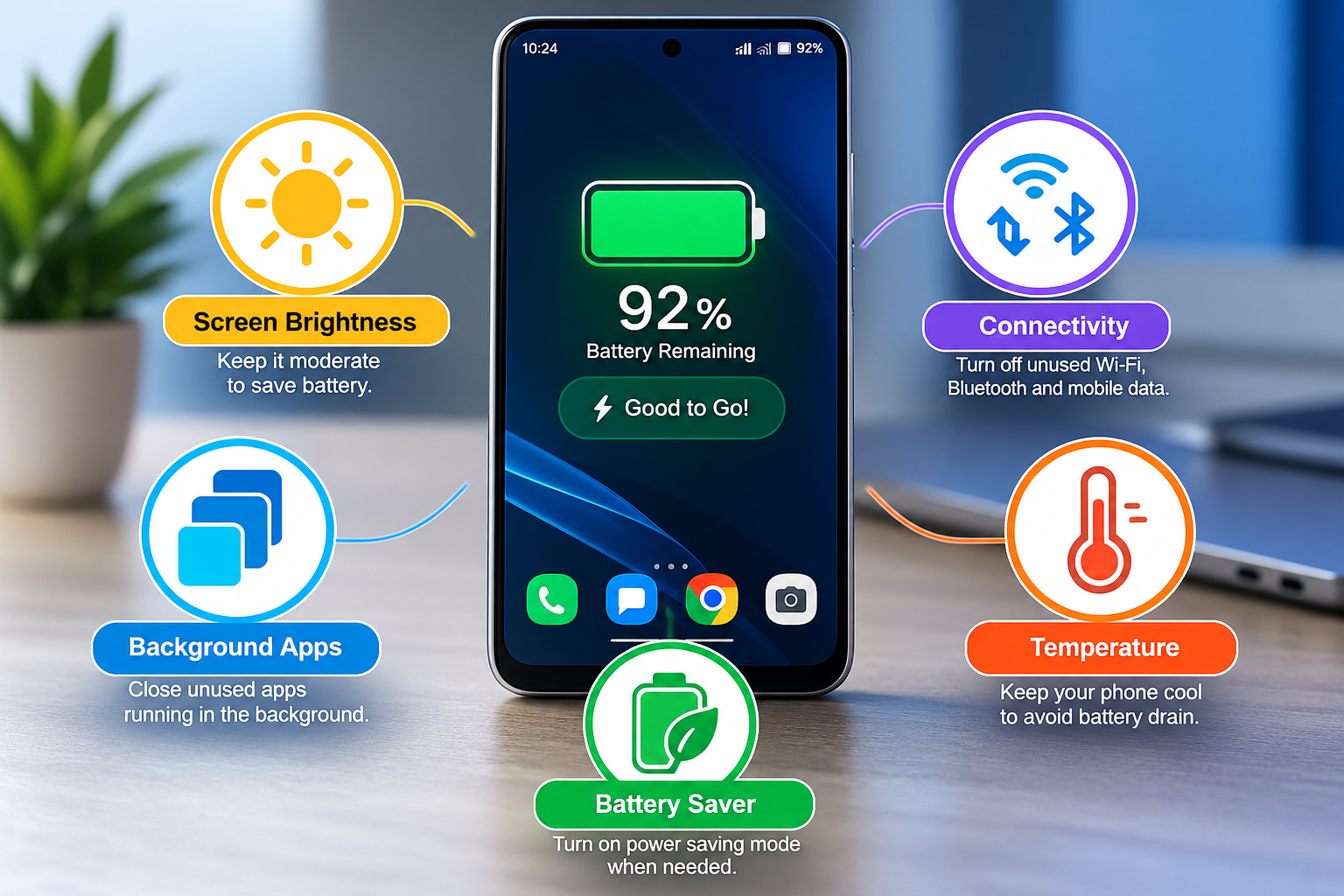
Smartphones have become an essential part of our daily lives. We use Android phones for calls, messaging, social media, online shopping, banking, navigation, videos, gaming, and work. With so much daily use, battery life can become a major concern.
If your Android phone battery runs out quickly, you do not always need to replace the battery or buy a new phone. A few simple settings and better usage habits can help you increase Android phone battery life and make your phone last longer between charges.
In this guide, we will discuss 5 easy ways to increase Android phone battery life, along with additional battery-saving tips that can help you get more out of your smartphone.
Why Does an Android Phone Battery Drain Quickly?
There can be several reasons why your Android phone battery drains faster than expected.
Common causes include:
- High screen brightness
- Long screen timeout
- Apps running in the background
- Excessive use of mobile data
- GPS and location services
- Bluetooth and mobile hotspot
- Heavy gaming and video streaming
- Poor mobile network signal
- Phone overheating
- Outdated apps or software
- An aging or degraded battery
Before changing multiple settings, it is a good idea to check your phone’s Battery Usage section. This can help you identify which apps or features are consuming the most power.
5 Easy Ways to Increase Android Phone Battery Life
1. Reduce Screen Brightness and Screen Timeout
The display is one of the most important sources of power consumption on a smartphone. Keeping your screen brightness at maximum for long periods can drain the battery faster.
How to Reduce Brightness
On most Android phones, you can adjust brightness through:
Settings → Display → Brightness
You can also use the brightness slider in the Quick Settings panel.
If your phone supports Adaptive Brightness or Auto Brightness, you can enable it so the screen brightness automatically adjusts according to the surrounding lighting conditions.
Reduce Screen Timeout
Screen timeout determines how long the display stays on when you stop using the phone.
If your screen timeout is set to 5 or 10 minutes, your display may remain active unnecessarily.
Go to:
Settings → Display → Screen Timeout
and choose a shorter period, such as 30 seconds or 1 minute, depending on your preference.
Quick Tip
Keep the brightness at a comfortable level rather than maximum brightness, and use a shorter screen timeout to reduce unnecessary battery consumption.
2. Control Background Apps
Some Android applications continue performing activities in the background even when you are not actively using them.
Examples may include:
- Social media apps
- Shopping apps
- Email apps
- Cloud storage apps
- Navigation apps
- Video apps
- Messaging apps
Background activity is not always a problem. Some applications need it to deliver notifications, synchronize information, or perform important tasks.
However, unnecessary background activity can contribute to battery drain.
How to Check Battery Usage
The exact menu can vary depending on your Android phone manufacturer and software version, but you can usually find battery information under:
Settings → Battery → Battery Usage
Here you can see which apps have recently consumed the most battery.
If an app that you rarely use is consuming an unusually high amount of battery, review its background activity and permissions. If you do not need the app, you can also consider uninstalling it.
Important Note
Do not automatically force-stop every app that appears in your battery usage list. Frequently used apps may naturally consume more battery because you actively use them.
3. Use Battery Saver Mode
Android phones generally include a Battery Saver or Power Saving Mode that can help extend battery life when your charge is running low.
Depending on the device, Battery Saver may reduce background activity, limit certain features, and make other power-saving adjustments.
You can usually find it under:
Settings → Battery → Battery Saver
or:
Settings → Battery → Power Saving Mode
When Should You Use Battery Saver?
Battery Saver can be particularly useful when:
- Your battery percentage is low
- You are traveling
- You do not have access to a charger
- You are outdoors for a long time
- You are experiencing unexpected battery drain
- You need your phone to last until the end of the day
Some Android phones also allow you to automatically turn on Battery Saver when the battery reaches a specific percentage.
Extreme Battery Saver
Some devices offer an Extreme Battery Saver or similar feature.
This mode can apply stronger restrictions to save additional power. Some apps may be paused or certain functions may be limited.
Use it when you need maximum battery life and can accept reduced functionality.
4. Turn Off Unnecessary GPS, Bluetooth and Hotspot Features
Connectivity features can consume additional power when they are actively being used.
These may include:
- Location services
- Bluetooth
- Mobile hotspot
- Nearby device scanning
- Wi-Fi scanning
- NFC, if supported
If you are not using a particular feature, you can consider turning it off when appropriate.
Turn Off Mobile Hotspot After Use
Mobile hotspot can consume a significant amount of battery because your phone is sharing its cellular connection with other devices.
If you have finished using your hotspot, turn it off rather than leaving it active.
Review Location Permissions
Location services are useful for applications such as:
- Google Maps
- Ride-hailing apps
- Weather apps
- Navigation services
- Food delivery applications
However, not every application needs continuous access to your location.
You can review location permissions through a menu similar to:
Settings → Location → App Permissions
Depending on your Android version, you may be able to choose options such as:
- Allow all the time
- Allow only while using the app
- Ask every time
- Don’t allow
Where appropriate, consider limiting location access for apps that do not need continuous location information.
5. Prevent Your Android Phone From Overheating
Keeping your phone at a reasonable temperature is important for battery performance and long-term battery health.
Excessive heat can put additional stress on a smartphone battery.
Your phone may become particularly hot when you:
- Play demanding games
- Record long videos
- Use mobile hotspot
- Charge the phone while performing intensive tasks
- Use navigation for long periods
- Leave the phone in direct sunlight
- Keep the phone inside a hot vehicle
How to Keep Your Phone Cooler
Follow these simple practices:
- Keep your phone away from direct sunlight.
- Avoid heavy gaming while charging.
- Do not leave your phone inside a hot car.
- If the phone becomes unusually hot, stop intensive tasks and allow it to cool.
- Use compatible and good-quality charging accessories.
- Avoid covering areas that are designed to dissipate heat.
Can You Use Your Phone While Charging?
Light phone use while charging is generally possible, but intensive activities such as gaming or demanding applications can increase heat.
If your phone becomes noticeably hot while charging, reduce usage and allow the device to cool down.
Additional Tips to Improve Android Battery Life
The five methods above are the most practical starting points, but several additional habits can also help you manage battery consumption.
Use Dark Mode
If your Android phone has an OLED or AMOLED display, using a dark interface may reduce display power consumption in some situations.
The actual benefit depends on the type of display, brightness level, apps being used, and other device settings.
Uninstall Apps You Don’t Use
Unused applications can take up storage space and may sometimes perform background activity or send notifications.
Review your installed apps and remove applications you no longer need.
Keep Apps and Android Updated
App developers regularly release updates that can include bug fixes, performance improvements, and security updates.
Android system updates can also include improvements and fixes.
Keeping your apps and operating system reasonably up to date can help maintain your phone’s overall performance.
Be Aware of Weak Network Signals
When your phone is in an area with a very weak cellular signal, maintaining a network connection can sometimes use additional power.
If you are in an area with no cellular service and do not need connectivity, using Airplane Mode may help conserve battery.
Check Always-On Display
Some Android phones have an Always-On Display feature that keeps certain information visible even when the main screen is off.
If maximizing battery life is your priority, check your Always-On Display settings and decide whether you need the feature.
Battery Life vs. Battery Health: What’s the Difference?
These two terms are often confused.
Battery Life
Battery life refers to how long your phone can operate between charges.
For example, if your phone lasts from morning until evening on one charge, that is its practical battery life.
Battery Health
Battery health refers to the condition and remaining capacity of the rechargeable battery compared with when it was new.
As a battery ages, its maximum capacity can gradually decrease.
If an older phone’s battery has significantly degraded, changing settings may improve power consumption but cannot restore the battery’s original physical capacity.
In such cases, consider having the battery assessed by the phone manufacturer or a qualified repair professional.
What Should You Avoid to Protect Your Android Battery?
Along with battery-saving settings, avoiding certain habits can help.
Avoid Excessive Heat
Do not regularly expose your phone to extreme temperatures, especially while charging.
Avoid Damaged Charging Accessories
Damaged cables, chargers, or connectors can cause charging problems and may create safety risks.
Use compatible charging accessories and replace damaged components.
Check Unusual Battery Drain
If an unfamiliar or rarely used application suddenly starts consuming a large amount of battery, investigate the app and its permissions.
Don’t Always Use Maximum Brightness
Maximum brightness is useful in bright outdoor conditions, but it is usually unnecessary indoors.
Turn Off Unnecessary Features
If you are not using hotspot, Bluetooth, location services, or other connectivity features, review whether they need to remain active.
Android Battery-Saving Checklist
Use this quick checklist to improve your Android phone battery life:
- Reduce screen brightness
- Use a shorter screen timeout
- Check Battery Usage regularly
- Control unnecessary background activity
- Use Battery Saver when needed
- Uninstall unused applications
- Review location permissions
- Turn off mobile hotspot after use
- Turn off unnecessary Bluetooth connections
- Avoid excessive heat
- Keep apps and Android updated
Frequently Asked Questions
How can I increase my Android phone battery life?
You can improve Android battery life by reducing screen brightness, shortening screen timeout, controlling background apps, using Battery Saver, turning off unnecessary connectivity features, and preventing the phone from overheating.
Does reducing screen brightness save battery?
Yes. The display can be a significant source of power consumption, so reducing unnecessary screen brightness can help reduce battery usage.
Does Battery Saver really work?
Battery Saver can help extend battery life by reducing certain background activities and power consumption. The exact effect depends on your phone and its settings.
Do background apps drain Android battery?
Some applications can use battery while running or performing tasks in the background. You can check your phone’s Battery Usage section to identify apps with significant battery consumption.
Should I turn off GPS to save battery?
If you do not need location services, turning them off or limiting location access for unnecessary apps can reduce some power consumption. However, apps such as maps and ride-hailing services may need location access to work properly.
Can I use my Android phone while charging?
Light use while charging is generally possible. However, intensive activities such as gaming can generate additional heat. If the phone becomes unusually hot, reduce usage and allow it to cool.
Does Dark Mode save battery?
Dark Mode can reduce power consumption on OLED and AMOLED displays in certain situations. The amount of savings depends on the display technology and how the phone is being used.
Can software settings fix an old battery?
Software settings can reduce unnecessary power consumption, but they cannot restore the physical capacity of a significantly degraded battery. An aging battery may eventually need professional assessment or replacement.
Final Thoughts
Improving your Android phone’s battery life does not always require expensive accessories or a new smartphone.
Simple changes such as reducing screen brightness, controlling background apps, using Battery Saver, managing unnecessary connections, and preventing overheating can help you use your available battery more efficiently.
Start by checking your phone’s Battery Usage section. This can help you understand which apps and features are consuming the most power.
If your battery continues to drain unusually quickly even after making these changes, especially on an older phone, consider checking the battery’s condition with the manufacturer or a qualified technician.
Quick Summary
Want your Android battery to last longer?
Reduce brightness → Shorten screen timeout → Check background apps → Use Battery Saver → Turn off unnecessary connections → Keep your phone cool.
These simple habits can help you get more useful time from your Android phone throughout the day.
About FirstClick
FirstClick Editorial Team publishes useful and informative content covering technology, health, jobs, mobile and gadgets, guides, and other topics relevant to everyday readers.
About the Author


